Riverside.FM Articles
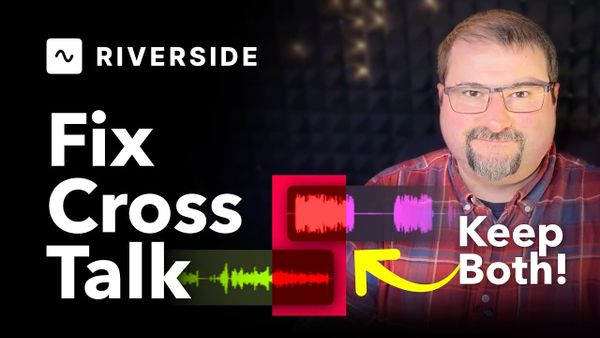
How to Fix Crosstalk in Riverside and Keep Both Speakers
Two ways to fix overlapping speech in Riverside — mute and hide one speaker, or duplicate the overlap and play both voices back-to-back so you don't lose either one.
Riverside.FM Articles
Don't start from scratch. Pull any segment of a finished Riverside edit into its own standalone edit — keeping every cleanup, scene, and camera change you've already done.
Riverside.FM Articles
You've finished editing an interview in Riverside. You've removed the filler words, closed gaps, applied Magic Audio. Now you want to send each speaker's track to a separate piece of software for further mixing or video work — but you want those tracks to carry
Riverside.FM Articles
A common mistake I see in Riverside is creating a new studio for every episode. It seems like a reasonable way to stay organized — but it causes real problems down the line. Riverside has a better structure built specifically for this: studios for shows, projects for episodes. Here is exactly
Riverside.FM Articles
Removing filler words — the ums, uhs, and occasional "likes" — is one of the simplest ways to clean up a recording. Riverside does most of it automatically with AI, but there are some nuances worth knowing: which removal method to choose, how to adjust sensitivity, how to remove words
Riverside.FM Articles
One of the most useful workflows in Riverside is the ability to create multiple edits from the same recording and export each one differently. You can have a video version for YouTube, an audio-only version for podcast platforms, a shorter segment for social media — all from one set of source
Riverside.FM Articles
If you have an audio-only podcast and want to post it on YouTube or other video platforms, Riverside makes it straightforward. Upload your audio, add a cover image, and export as video — all in a few clicks. Here is the full workflow. Upload Your Audio File Start by uploading your
Riverside.FM Articles
Make the Riverside AI and Automations Yours!
Riverside.FM Articles
Riverside just rolled out a feature I've been wanting for a long time: the Content Planner. This new tool replaces the old Scheduler and brings everything related to planning, recording, and publishing into a single unified calendar view. The standout addition? You can now schedule social media posts
Riverside.FM Articles
Have you ever watched a podcast where the camera zooms in on the speaker making a point, then pulls back to the wide shot, and thought they had a camera operator doing it live? They almost certainly did not. It is all done in post-production, and if you use Riverside,
I teach you video and podcast editing
There's a specific kind of fatigue that comes from managing too many platforms. One tool for hosting video, another for taking payments, a third for your community, a fourth for sending emails to your students, and somewhere in there a spreadsheet tracking who has access to what. I&
If you're hosting your podcast with Riverside, there's a feature that's been highly requested since the hosting service launched — you can now create a website for your podcast directly on the platform. It only takes a couple of clicks, and you'll have
If you've recorded an interview in Riverside and noticed that your guests' names and titles are missing when you open the editor, don't worry — this is expected behavior, and adding them back is straightforward. Why Names Disappear After Recording During a live recording session, Riverside
In this tutorial, I walk through the complete workflow for adding intros, outros, hooks, background music, and YouTube end screens to a podcast episode in Riverside. Whether you record your intro directly in the studio, import an external file from a client, or use AI-generated hooks, Riverside handles all of
If you recorded a session in Riverside with the wrong transcript language selected, you might wonder whether there's a way to fix it without losing your work. Unfortunately, Riverside doesn't offer a direct re-transcribe option within an existing studio at the moment, but there is a
Riverside’s Editor add-on lets you bring in an outside editor to work on your recordings without giving them access to your full account. Here’s how it works and how to set it up. What the Editor Add-On Gives Access To When you invite someone as an editor, they
Creating thumbnails used to mean opening a separate design tool, finding the right frame, and manually composing text and images. Riverside now handles it directly inside the editor through Co-Creator — the same AI assistant that generates titles, descriptions, and show notes, and works with you inside the editor. In this
If you edit videos or podcasts for clients, you know the feedback loop: export the file, upload it to a review platform, wait for comments, download the notes, go back to your editor, make changes, and repeat. Tools like Frame.io and TechSmith Review exist specifically for this — but they&
If you're using Riverside on a Mac (or any other recording app) and a blue background suddenly appears behind you in the camera preview, it's not a Riverside bug — it's a macOS feature that's been turned on without you realising. What'
Navigating the Riverside timeline with a mouse is faster than you'd think — if you know two shortcuts. Zoom In and Out Hold Cmd (Mac) or Ctrl (Windows) and scroll your mouse wheel to zoom in and out on the timeline. This lets you quickly jump between a high-level
When you shorten or remove gaps in Riverside's editor, it's tempting to trim them down to nothing — cutting right where one word ends and the next begins - or maybe the AI does that with the automated gap removal tool. The result sounds robotic. Words slam
If you burn captions directly into your video in Descript, they become permanent — viewers can't turn them off. That's fine for social media clips, but for longer content hosted on Vimeo, Wistia, or YouTube, you typically want toggleable captions that viewers can enable or disable. The